
Raffle Nexus Terminal — Sales Agent Guide for the Verifone T650p
How to sign in, sell raffle tickets, take card and cash payments, print tickets, cancel orders and fix common problems on the payment terminal.
Inside this guide
- 1Getting Started — the terminal, signing in, the top bar
- 2The Dashboard — jackpot, refresh, closing time, battery
- 3Making a Sale — tickets, customer, card or cash, printing
- 4Orders — looking up orders and session totals
- 5Refunds & Voids — cancelling an order with a code
- 6Incomplete Orders — when a card payment didn't finish
- 7Troubleshooting — payments app, printer, internet
- 8Appendix — glossary and one-page quick reference
Who this guide is for
How to read the steps
- CREATE NEW ORDER is a button you tap on the terminal.
- Order Confirmed is what the screen shows you.
- Tap any screenshot to see it larger.
- Search finds any button or message: type a word you see on the screen.
Getting Started
Meet the terminal, sign in, learn what the bar at the top of the screen tells you, and what happens when the app starts.
1.1The terminal at a glance
The Verifone T650p runs three apps that work together. You work in Raffle Nexus Terminal. The other two belong to Global Payments, the card payment company, and take care of cards and printing.
| App | What it does | When you’ll see it |
|---|---|---|
| Raffle Nexus Terminal | Our app. You sell tickets, look up orders and cancel orders here. | All the time. |
| Payments (Global Payments) | Has to be running in the background for card payments and ticket printing to work. You open it from the terminal’s main screen. | Usually only at the start of the day, or when fixing a problem (see 7.1). |
| PA (Global Payments) | The card screen where customers tap, insert or swipe their card. It also looks after printing. | During every card payment, refund or void, and briefly while a ticket prints. |
The buttons at the bottom of the screen
Below the app, the terminal has its own Back, Home and Overview buttons. Overview is the square button (▢); it shows the apps that are open. You’ll only need it when fixing a problem (see 7.1).
Getting ready for a shift
- Charge the terminal. Above 35% is best; at 25% or less, card payments and printing usually stop working (see 2.4).
- Check there is paper in the printer.
- Make sure the terminal is connected to Wi-Fi or mobile data.
- If the Payments app isn’t already running, open it from the main screen and wait for its ready screen.
- Open Raffle Nexus Terminal and sign in (see 1.2).
Good to know
You don’t need to do anything in the Global Payments screens except when a customer is paying or getting money back. The terminal switches between the apps by itself.
1.2Signing in and out
Your raffle manager sets the terminal up once with their own account. After that, every agent signs in with their own 4-digit PIN, so each sale is recorded under the right name.
Sign in
- Open Raffle Nexus Terminal. You’ll see your organization’s logo, the fundraiser name and Enter your 4-digit pin to log in.
- Type your 4-digit PIN into the four boxes. There’s no button to press — you’re signed in as soon as you enter the fourth digit.
- The dashboard opens (see Section 2).
If you see Could not identify pin. Try again., type your PIN again. If it keeps happening, ask your raffle manager to check your PIN.
Sign out
- On the dashboard, tap SETTINGS.
- Tap LOG OUT at the bottom of the screen.
- You’re back on the PIN screen with the message You have been logged out. The next agent can now sign in.
Good to know
If the terminal shows Log in to Raffle Nexus with Email and Password boxes instead of the PIN screen, the terminal hasn’t been set up yet. Hand it to your raffle manager.
1.3The top bar
The black bar across the top of the screen is always there while you hold the terminal upright. It shows, from left to right:

| You see | What it means |
|---|---|
| Your name | The agent who is signed in. Long names are cut to the first 10 letters followed by “…”. |
| A blinking red warning symbol next to your name | There are Incomplete Orders: card payments that went through but that Raffle Nexus hasn’t recorded yet. Tap anywhere on the black bar to open them (see Section 6). |
| Signal bars with WIFI or LTE | How the terminal is connected to the internet (LTE means mobile data) and how strong the signal is. If nothing shows here, there’s no connection. |
| Lightning bolt | The terminal is charging. |
| Battery with a percentage | Battery level. The battery fills white when it’s fine, turns yellow at 35% or less, and red at 25% or less (see 2.4). |
| Time | The current time. |

1.4First launch: connecting to the Payments app
Every time Raffle Nexus Terminal starts, it connects to the Global Payments Payments app in the background, so it’s ready for card payments and printing.
- Open Raffle Nexus Terminal.
- The Global Payments screen may flash up once or a few times for a moment while the apps connect. This is normal. Don’t tap anything — Raffle Nexus comes back by itself.
- When the terminal is being set up, you may see the Raffle Nexus logo with a spinning circle for a few seconds while it connects.
- If the Payments app isn’t answering, you’ll see a Payments App message. Tap Launch PA App and wait for Raffle Nexus Terminal to come back. If that doesn’t work, follow the steps in the message (see 7.1).
- If you see Unable to connect to Global Payments, please ensure the Payments App is running. Then restart the Raffle Nexus Application., open the Payments app from the main screen, then come back and tap Restart App.
Good to know
The app checks the connection again whenever you come back to it (for example after the screen has been off). If the Payments app stops answering at any time, a Payments App message appears — see 7.1.
The Dashboard
The dashboard is your home screen. Every sale, order search and refund starts here.
2.1Overview
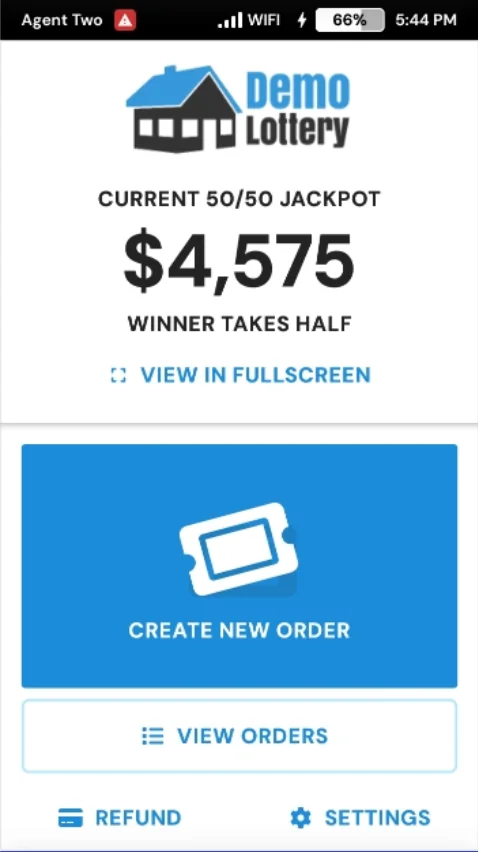
After you sign in you’ll see the dashboard. From top to bottom:
- The jackpot. Your organization’s logo and the current 50/50 jackpot, with the wording your organization has chosen above and below it.
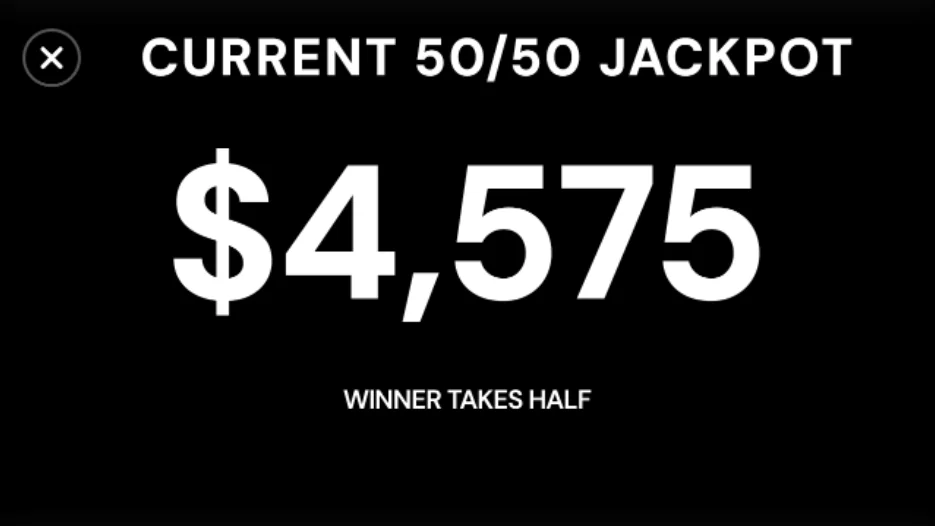
- VIEW IN FULLSCREEN turns the terminal sideways and shows the jackpot in large numbers — handy for showing customers. Tap the round X (or the Back button) to return.
- CREATE NEW ORDER starts a sale (Section 3).
- VIEW ORDERS shows the orders taken and the session totals (Section 4).
- REFUND cancels an order and returns the money, using a code from your manager (Section 5).
- SETTINGS shows the lottery name and app version, has shortcuts to Wi-Fi and screen brightness, and is where you LOG OUT.
Good to know
On most other screens, the house button or the X at the top-left brings you back here.
2.2Pull down to refresh the lottery
If the jackpot looks out of date, or your manager tells you the lottery has just been changed or reset, reload it.
- Go to the dashboard.
- Put your finger just below the black top bar and drag down.
- Let go when a small round refresh symbol appears just below the black bar. It spins while the lottery reloads, and the dashboard updates.
Good to know
Pull-to-refresh only works on the dashboard. Other screens load fresh information each time you open them.
2.3“Sales Closed” message
Every lottery has a closing time. After that, no more tickets can be sold.
- If you tap CREATE NEW ORDER after the closing time, you’ll see Sales Closed — This lottery closed at [time]. No new orders can be placed.
- Tap OK. Let the customer know that sales have closed.
- If the lottery closes while you’re in the middle of an order, the same message appears when you reach the Confirm step. Tap OK and don’t continue with the sale.
Good to know
If you think sales should still be open, contact your raffle manager. Once they’ve fixed it, pull down on the dashboard to refresh (see 2.2).
2.4Battery warnings
Card payments and printing are handled by the Global Payments apps, which stop working reliably when the battery is low. The app warns you before that happens.
| Battery | Message | What it means |
|---|---|---|
| 35% or less | Low Battery Warning | Card payments and printing will likely stop once the battery drops below 25%. Plug in now. |
| 25% or less | Critical Low Battery — Payment & Printing Affected | Card payments and printing usually won’t work, and sales usually won’t complete. Charge before selling. |
- Tap Dismiss to close the message.
- Connect the charger straight away.
- Wait until the battery is back above 25% before taking card payments. Being plugged in isn’t always enough on its own — the battery itself needs to charge back up.
Good to know
While the battery is low, the warning comes back each time you start a new order. The battery in the top bar also turns yellow (35% or less) or red (25% or less).
Making a Sale
This is the main part of your job. A sale moves through a few short steps. Your lottery decides which steps appear — for example, you'll only see the Donation step if your organization accepts donations.
- CREATE NEW ORDER
- Prize Raffle
- 50/50
- Donation
- Contact
- Confirm
- Charge
- Card or Cash
- Order Confirmed
Dashed steps only appear if your lottery uses them.
3.1Starting a new order
- On the dashboard, tap CREATE NEW ORDER.
- The order screen opens. The title at the top shows which step you’re on, for example New Order • Prize Raffle.
- At the bottom of every step you’ll see the Grand Total, which updates as you add tickets, and a large button that takes you to the next step. From the second step on, the arrow button on the left takes you back one step.
To cancel an order before payment
- Tap the X at the top-left (or press Back on the first step).
- You’ll see Cancel this order? — your progress will not be saved.
- Tap CANCEL ORDER to throw the order away, or DISMISS to carry on.
3.2Choosing tickets
Tickets are sold in packs, shown as the number of tickets and the price — for example 1 for $10 or 5 for $20. Your organization sets the packs and prices.
Each pack is a row on a white card: a ticket symbol, the pack and price, and a round + button on the right. Once you add a pack, the row turns coloured and the button shows −, the number of packs and +.
Prize Raffle (New Order • Prize Raffle)
- Tap + next to a pack to add it. The row is highlighted and shows how many you’ve added.
- Tap + again to add more of the same pack, or − to take one away.
- A pack that is crossed out and marked SOLD OUT can’t be sold. If the + turns grey, there are no more tickets left in that pack.
- Tap Next: 50/50 Tickets.
50/50 (New Order • 50/50)
- The current jackpot is shown at the top. To hide it and make more room for the packs, tap the small round button with two arrows on the right, just under the title bar. Tap it again to show the jackpot. The app remembers your choice for next time.
- Add packs with + and −, the same way as above.
- Tap the button at the bottom. It says Next: Donation, Enter Contact Info or Confirm Order, depending on which steps your lottery uses.
Donation (New Order • Donation) — only if your lottery accepts donations
- If the customer wants to donate, type the amount in Enter donation amount. The $ sign is already there.
- If they don’t want to donate, leave the box empty.
- Tap Enter Contact Info.
Good to know
- The customer must buy at least one Prize Raffle or 50/50 ticket. Enter Contact Info stays greyed out until they do.
- If a Next button stays greyed out on a ticket step, your lottery requires at least one pack from that step.
- The lottery licence number is shown at the bottom of the ticket steps.
3.3Customer details
On the Contact step (New Order • Contact) you enter the customer’s details. Your lottery decides which boxes appear — usually name, phone, email and address.
- Boxes marked with * must be filled in (* Required Fields). Confirm Order stays greyed out until they are.
- Tap a box and type. Use the keyboard’s Next key to move to the next box.
- Everything except the email address is changed to CAPITAL letters automatically. Phone numbers take digits only.
- Tap Confirm Order. The app checks the details with Raffle Nexus.
- If something needs fixing, you’ll see Order Error with an explanation (for example We could not validate your order. Please try again or contact support). Tap OK, correct the details and tap Confirm Order again.
Finding a returning customer
- In the email or phone box, type the customer’s email address or phone number.
- Wait a moment. A small spinner appears in the box while the app searches.
- If the customer has bought before, a coloured bar with a person symbol slides in over the top of the form: 1 match found. Autofill? (or 2 matches found. Autofill?, and so on).
- Tap the bar. A panel slides up from the bottom, titled Would you like to autofill?, with a box for each match showing their name, phone, email and province.
- Tap the right customer. The form fills in for you. Check the details with the customer before you continue.
- If none of them is right, tap the X to close the list and carry on typing.
Good to know
- Email addresses can only contain letters, numbers and the symbols _ – @ and . (full stop). Any other character, such as +, can’t be typed.
- If your lottery doesn’t collect contact details, this step is skipped.
3.4Confirm Order
The last check before payment. The screen (New Order • Confirm) is headed Confirm Order — Ensure these details are correct. Tap the back arrow to edit ticket quantities. It shows:
- the customer’s name, phone number, email and province;
- Prize Raffle — each pack chosen, shown as quantity × pack name (for example 2 x Single Ticket), with the Prize Raffle total;
- 50/50 — the same for the 50/50 packs;
- Donation — if the customer is donating.
Only packs with at least one ticket are listed, and a heading only appears if something was chosen under it.
- Read the order back to the customer.
- To change anything, tap the back-arrow button at the bottom-left to go back to the right step.
- When everything is right, tap Charge $… (it shows the total).
3.5Paying by card
- On Confirm Order, tap Charge $… (the button shows the total).
- A panel slides up from the bottom, titled Select Payment Method, with two buttons: Credit or Debit Card and Cash. Tap Credit or Debit Card. (To change your mind, tap the X at the top-left of the panel.)
- The app sets up the order, then the Global Payments screen opens showing the amount.
- Let the customer tap, insert or swipe their card and follow the prompts on the screen, such as entering their PIN.
- Once the card is approved, Global Payments finishes its own screens and brings you back to Raffle Nexus by itself. Don’t press anything while this happens.
- You’ll see Payment approved — Completing your order… for a moment while the order is recorded with Raffle Nexus.
- Order Confirmed opens (see 3.7).
Good to know
The Global Payments screen may pop up again for a moment while the ticket prints. This is normal.
3.6Paying by cash
- On Confirm Order, tap Charge $… (the button shows the total).
- In the Select Payment Method panel, tap Cash.
- The Pay with Cash screen shows the amount to collect in large numbers above a picture of cash, and says The customer’s ticket will be available for print once payment has been confirmed.
- Take the cash and give any change.
- Tap Confirm Payment.
- Order Confirmed opens (see 3.7).
Good to know
To go back to the order without taking payment, tap the back arrow at the top-left.
3.7Order Confirmed: printing tickets
After payment you’ll see a green tick, Order Confirmed and Order ID: followed by the order number. What happens next depends on your lottery.
| One-day event | Lottery that runs over several days |
|---|---|
| The ticket prints automatically. While it prints, the heading changes to Printing Ticket. | The ticket is emailed. The screen says This ticket will be automatically emailed to: and the customer’s email address. |
| The screen says This ticket will be required as proof of purchase during raffle draws. | Printing is optional — tap Print Ticket (Optional) if the customer would like a paper ticket. |
- Wait while the ticket prints. The buttons are greyed out until it’s done, and the Global Payments screen may appear for a moment.
- When printing has finished, the heading goes back to Order Confirmed and the print button shows a tick.
- Tear off the ticket and give it to the customer.
- Tap Create New Order to serve the next customer, or the house button to its left to go back to the dashboard.
If the ticket doesn’t print
You’ll see Printing Error — Please check the printer and paper, then try again. Tap OK, check the paper (see 7.2), then tap Retry Print.
Leaving without printing
If you tap the house button or Create New Order before a ticket has printed, you’ll see Leave without printing a ticket? — While this ticket will be automatically emailed, you won’t be able to reprint a ticket in the future.
- Tap YES, DON'T PRINT A TICKET to leave without a paper ticket.
- Tap DISMISS to stay and print.
3.8When a sale doesn't go through
If something goes wrong, the app tells you what happened. Tap OK to close the message, then do what the table says.
| Message | What it means | What to do |
|---|---|---|
| Order Error — Card was declined. Please try again, or try with a new card | The customer’s bank said no. The card was not charged. | Tap Charge $… again, or ask for another card or cash. |
| Transaction Cancelled — The transaction was cancelled by customer. Please try again. | The payment was cancelled on the Global Payments screen. | When the customer is ready, tap Charge $… again. |
| Operation Timeout | The connection was lost before the payment finished. | First look for the red warning in the top bar. If it’s there, the card was charged — go to Section 6. If not, check the internet and try again. |
| Payment Service Unavailable | The Global Payments app may still be busy with an earlier payment. | Follow the message: press Overview ▢, open the PA app, cancel what’s on its screen, then try again. If it keeps happening, restart the terminal (see 7.1). |
| No Internet Connection — You’re not connected to the internet. You need a connection to place an order. | The terminal is offline. | Reconnect (see 7.3), then try again. |
| Order Error — Your Session has expired. Please close your current session before completing any new orders | The current session needs to be closed before you can sell more. | Stop selling on this terminal and contact your raffle manager (see 4.3). |
| Order Error with any other explanation | Raffle Nexus couldn’t accept the order as it is. | Read the explanation, fix the order and try again. If it keeps happening, contact your raffle manager. |
| Create New Order — We ran into an issue getting the ticket pack groups. Try again or contact support. | The tickets couldn’t be loaded. | Tap OK, check the internet and tap CREATE NEW ORDER again. |
Card charged, but the order wasn’t confirmed
Very occasionally the card is approved but the order can’t be recorded with Raffle Nexus — for example if the internet drops at exactly the wrong moment. You’ll see Order Error — The card was charged, but the order could not be confirmed with the server. This payment has been saved on this device so it is not lost. Tap below to resolve it now., with a house button on the left and View Issue on the right.
- Don’t charge the card again. The customer has already paid.
- Tap View Issue to fix it now (see 6.2). If you tap the house button instead, the payment stays saved under Incomplete Orders and the red warning appears in the top bar until you fix it.
- Follow 6.2 to finish the order and print the customer’s ticket.
Orders
Look up orders you've taken, check a customer's tickets, and see the totals for your session.
4.1Viewing orders
- On the dashboard, tap VIEW ORDERS.
- The Orders screen has two tabs: CURRENT SESSIONS (the session that’s open now) and ALL SESSIONS (including earlier sessions).
- The box at the top shows the total sales, [number] orders since [date and time], and VIEW SUMMARY (see 4.3).
- Under PAST ORDERS, each order shows ID # and the order number, a Credit/Debit or Cash label, the Session/Subsession, the customer’s name and email, and the total. Cancelled orders have a Cancelled label and their total is shown in red, in brackets.
- Scroll down to load older orders. Tap an order to see its details (see 4.2).
- Tap the X at the top-left to go back to the dashboard.
Good to know
- The icon at the top-right of the Orders screen (a clipboard with an exclamation mark) opens Incomplete Orders. A red number on it shows how many are waiting (see Section 6).
- No orders yet? You’ll see No tickets sold yet. (Sell a ticket to start a new session.)
- Offline? You’ll see No network connection. (Orders will load once you’re back online.)
4.2Order details
Tap any order in the list to open Order # and its number. The screen shows:
- Customer Info with ID # (the order number) and the date and time of the sale;
- Session/Subsession: — which session the order belongs to;
- Transaction #: — card orders only. This is Global Payments’ reference for the card payment. Quote it to your manager if there’s ever a question about a card payment;
- Card: — the card type and last four digits, when available;
- Name, Phone, Email and Address;
- under TICKETS: Paid By (Credit/Debit or Cash) and Status — for example Generated (complete, tickets issued), Cancelled or Refunded;
- Total, then each raffle with the packs bought and the ticket numbers.
Sending the ticket email again
For lotteries that run over several days, the RESEND EMAIL button sends the customer’s tickets to their email address again. You’ll see Order email resent to followed by the address.
Good to know
You can’t reprint a ticket or cancel an order from here. To cancel an order, you need a code from your manager (Section 5).
4.3Session summary and closing a session
A session groups the sales made on this terminal. The summary shows its totals, split by payment type.
- On the Orders screen, tap VIEW SUMMARY.
- The Summary screen shows the total and [number] orders since [date and time].
- Under TRANSACTIONS, each payment type (cash and card) has its own Session/Subsession, Quantity, Sales, Refunded and Total.
- Tap the back arrow to return.
If no session is open, you’ll see A new session will open once you sell your first ticket.
Closing a session
Closing a session isn’t available on the terminal in this version of the app. When a session needs to be closed — or if you see Your Session has expired. Please close your current session before completing any new orders — stop selling on this terminal and contact your raffle manager.
Refunds & Voids
When a customer needs their money back, you cancel the order with a 4-digit code from your raffle manager. The customer's ticket numbers are cancelled and removed from the draws.
5.1Void or refund?
Both cancel the order and give the customer their money back. You don’t have to choose — the app works out which one applies and changes its screens to match.
| Void | Refund | |
|---|---|---|
| When | The card payment was made recently — usually the same day — and hasn’t fully gone through yet. | The card payment has already gone through — usually a sale from an earlier day. |
| What happens | The charge is cancelled before it goes through. | The money is sent back to the customer’s card. The customer’s bank decides when it shows up. |
| What you’ll see | Void, Confirm Void, Void $…, then Order Cancelled & Voided | Refund, Confirm Refund, Refund $…, then Order Cancelled & Refunded |
Good to know
- Only card orders can be refunded or voided on the terminal. For cash orders, your raffle manager handles the refund.
- Either way, the screen reminds you that the customer’s ticket numbers will be removed from any draws.
5.2Cancelling an order and returning the money
Before you start: the customer asks for their money back, you contact your raffle manager, and your manager gives you a 4-digit refund code for that order.
- On the dashboard, tap REFUND.
- The Refund/Void screen says Contact your raffle manager to initiate a refund or a void. and To proceed with a refund, enter the 4-digit code issued by your manager.
- Type the code into the four boxes. The app looks it up as soon as you enter the fourth digit.
- The next screen is titled Void or Refund. It shows the order’s ID #, the payment type, the customer and the tickets being cancelled, with the amount at the bottom. Check it with the customer.
- Tap Void $… or Refund $… (the button shows the amount).
- The Global Payments screen opens. Follow what it says — for a refund, the customer may need to tap or insert the card they paid with.
- When it’s finished you’re brought back to Raffle Nexus and Order Cancelled & Voided (or Order Cancelled & Refunded) opens (see 5.3).
If something goes wrong
| You see | What to do |
|---|---|
| A red message under the code boxes | The code wasn’t accepted. Check the code with your raffle manager and type it again. |
| Terminal can only refund transactions made with GlobalPayments. Contact your manager to process this refund. | The order wasn’t paid by card on the terminal (for example, it was a cash order). Your raffle manager will handle it. |
| The transaction was cancelled by customer. Please try again. | The Global Payments step was cancelled. The screen reloads — tap Void $… or Refund $… again when ready. |
| Failed to complete refund. Please try again. | The money may already be back on the card, but Raffle Nexus wasn’t updated. Don’t do the refund again — check Incomplete Orders (see 6.4). |
| No network connection. (This will resume once you’re back online.) | Reconnect to the internet (see 7.3). The screen carries on once you’re back online. |
5.3The cancellation receipt
- Order Cancelled & Voided (or Order Cancelled & Refunded) shows the Order ID:, how it was paid, the card, the customer and This order is no longer valid. The ticket numbers have been canceled.
- Tap Print Receipt to print a cancellation receipt for the customer. When it has printed, the button greys out and shows a tick.
- If printing fails, check the paper (see 7.2) and tap Retry Print.
- Tap Back to home.
If a code has already been used
If you enter a code for an order that has already been cancelled, you’ll see Void Already Processed or Refund Already Processed (or Void Complete / Refund Complete), with Total Voided or Total Refunded. Nothing is charged or refunded again. If a Print Receipt button is shown, you can use it to print the receipt (it then changes to Re-print Ticket).
Good to know
When you cancel an incomplete order from the Incomplete Orders screen, the receipt prints automatically (see 6.3).
Incomplete Orders
Sometimes a card payment goes through but the order doesn't finish. The app keeps a record so the customer's money is never lost, and helps you finish the order or give the money back.
6.1What an incomplete order is
An incomplete order is a card payment that was approved but that Raffle Nexus hasn’t recorded — usually because the internet dropped at the wrong moment. The customer has paid but doesn’t have tickets yet. The same can happen with a refund or void: the money went back to the card, but Raffle Nexus wasn’t updated.
How you’ll know
- A blinking red warning symbol appears next to your name in the top bar. Tap anywhere on the black bar to open Incomplete Orders.
- On the Orders screen, the clipboard icon at the top-right shows a red number — tap the icon to open Incomplete Orders.
- Straight after a sale, you may see Order Error with a View Issue button (see 3.8).
The Incomplete Orders screen
It says These card transactions went through on the terminal but were not confirmed with the server. — in other words, the customer paid but Raffle Nexus doesn’t know yet. There are two tabs, Orders and Refunds/Voids, each with the number waiting in brackets. Below them is a table with one row per payment and the columns Order, Amount, Time and Status. The status is a small coloured label:
| Status | In plain words |
|---|---|
| API failed | The app tried to tell Raffle Nexus about the payment and it didn’t work. Open it and tap Resolve. |
| Unconfirmed | The payment is saved, but the app didn’t get to finish telling Raffle Nexus (for example, the app was closed). Open it and tap Resolve. |
6.2Completing a payment that didn't finish
Use this when the customer still wants their tickets. It records the order the customer already paid for and prints their ticket.
- Open Incomplete Orders and stay on the Orders tab.
- Tap the order. Payment Details shows the Status, Type (Order payment), Order, Amount, Card (last four digits), Global Payments’ reference numbers (GP transaction ID and Transaction #), when it was Recorded, and the Error.
- Make sure the terminal is connected to the internet.
- Tap Resolve at the bottom. A panel slides up asking How would you like to resolve this payment?
- Tap Retry to Create Order.
- If it works, Order Confirmed opens, just like a normal sale. Print the ticket as usual (see 3.7). The order disappears from Incomplete Orders.
- Tap Incomplete Orders to go back to the list, or the house button to go to the dashboard.
If it doesn’t work, you’ll see Couldn’t resolve payment — This payment could not be resolved … It is still saved on this device, so you can try again. Tap OK, check the internet and try again in a few minutes. If it still fails, contact your raffle manager with the order number and Transaction #.
Good to know
If the customer would rather have their money back, or the order can’t be completed, use Refund/Void Payment instead (see 6.3).
6.3Voiding or refunding an incomplete order
Use this to give the customer their money back instead of completing the order. You don’t need a code from your manager here, but follow your organization’s rules — if you’re not sure, check with your manager first.
- Open the order in Incomplete Orders, tap Resolve, then tap Refund/Void Payment.
- The Refund / Void page shows the Order, Amount and Card. The app checks whether the payment can still be voided — the button says Checking… for a moment.
- A message explains what will happen, and the button changes to Void $… (the charge is cancelled) or Refund $… (the money goes back to the card).
- Tap the button and follow the Global Payments screen.
- When it’s done, Order Cancelled & Voided (or Order Cancelled & Refunded) opens and the cancellation receipt prints automatically. If it doesn’t print, tap Retry Print.
- Tap Incomplete Orders to go back to the list, or the house button to go to the dashboard.
If something goes wrong
- The app couldn’t check the payment. A message asks you to make sure the Payments App is running, and the button says Try Again. Check the Payments app (see 7.1), then tap Try Again.
- Couldn’t resolve payment — The money was returned to the card, but Nexus could not be updated … The customer has their money back; only Raffle Nexus still needs to be told. The order stays in the list, and its details show Voided – money returned (or Refunded – money returned). Later, open it, tap Resolve and then Send Void to Nexus (or Send Refund to Nexus).
- You may also see Payment Voided or Payment Refunded confirming that it’s done. If the receipt couldn’t print, tap Retry Print, or Close to skip it.
6.4Incomplete refunds & voids tab
If a refund or void from the dashboard (Section 5) returned the money but Raffle Nexus couldn’t be updated, it’s listed on the Refunds/Voids tab. Each row has a small Refund or Void label under the order number, and the amount has a minus sign because the money went back to the customer.
- Open Incomplete Orders and tap the Refunds/Voids tab.
- Tap the row. Payment Details also shows the Refund code your manager gave you.
- Make sure the terminal is online, tap Resolve, then Send Refund to Nexus (or Send Void to Nexus).
- When it works, Order Cancelled & Refunded (or & Voided) opens and the receipt prints automatically.
When nothing is waiting, the tab says No incomplete refunds or voids.
Troubleshooting
Quick fixes for the problems you're most likely to meet at an event.
7.1“Payments App not responding”
The Global Payments Payments app has to be running for card payments and printing. If it stops answering (for example, it was swiped away), Raffle Nexus shows a Payments App message that stays on screen until it’s fixed: The Payments App is not responding, so card payments cannot be processed. Launch it to continue.
- Tap Launch PA App. The Global Payments screen may appear for a moment, then you’re brought back.
- The message changes to Opening the Payments App… and then Waiting for the Payments App to respond…, with a spinner.
- When the Payments app answers, the message closes by itself and you can carry on.
If that doesn’t work
- Press the terminal’s Overview button — the square (▢) at the bottom of the screen.
- Each open app is shown as a card with its name. Swipe the PA card and the Payments card off the screen so both apps close. Leave Raffle Nexus Terminal open.
- Press Home and open the Payments app again from the main screen. Wait for its ready screen.
- Go back to Raffle Nexus Terminal (tap its icon, or use Overview ▢).
- If the message still won’t go away, restart the terminal.
“Payment Service Unavailable”
This message means the Global Payments app may still be finishing an earlier payment. Press Overview ▢, open the PA app, cancel what’s on its screen, then go back and try again. If it keeps happening, restart the terminal.
7.2Printer problems
If a ticket or receipt doesn’t print, you’ll see Printing Error — Please check the printer and paper, then try again.
- Tap OK.
- Open the printer cover and check the paper roll. Put in a new roll if it has run out, then close the cover firmly.
- Tap Retry Print (on Order Confirmed for a ticket, or on the cancellation screen for a receipt).
Still not printing?
- Check the battery — at 25% or less, printing usually stops (see 2.4).
- If you see Payment Service Unavailable, or the Payments App message, see 7.1.
- Don’t leave Order Confirmed until the ticket has printed: once you leave, it can’t be printed again. For lotteries that run over several days the customer still gets their ticket by email.
7.3No internet
The app needs the internet to take orders. If the connection drops, a full-screen message appears: No Internet Connection — Please connect to the internet to continue using the app. A weak signal shows Low Internet Connection — Your internet connection is too weak. Please improve connectivity to continue.
- Tap Network Settings to open the terminal’s network settings. Connect to the event’s Wi-Fi, or check that mobile data is on.
- To see the screen underneath while you wait, tap the round button with an upward arrow at the bottom of the message. The message shrinks to a red bar at the top (No Internet Connection or Low Network). Tap the red bar to open the message again.
- When the connection comes back, the message disappears by itself.
While you’re offline
- You can’t start a new order: You’re not connected to the internet. You need a connection to place an order.
- The Orders list and the refund screens wait until you’re back online.
- You can also open Wi-Fi settings from SETTINGS › Open Wifi Settings.
7.4Quick-fix checklist
Something not working? Go down this list.
- Battery above 25%, ideally charging. Look for the lightning bolt in the top bar.
- Internet: signal bars and WIFI or LTE in the top bar. If not, see 7.3.
- Payments app running. If you see the Payments App message, tap Launch PA App (see 7.1).
- Paper in the printer, cover closed.
- Red warning in the top bar? Fix the Incomplete Orders first — and never charge a customer twice (Section 6).
- Right lottery? Check SETTINGS › Lottery Name. If the jackpot looks wrong, pull down on the dashboard to refresh (see 2.2).
- Still stuck? Make sure no payment is in progress, then close and reopen Raffle Nexus Terminal. As a last resort, restart the terminal.
- Asking for help? Tell your raffle manager the order number, the Transaction # (card orders), the time, and the exact message on the screen. The app version is at the bottom of SETTINGS.
Appendix
Words you'll come across, and a one-page summary of making a sale.
8.1Glossary
- 50/50
- A raffle where the prize is a share of the money raised. The current prize is the jackpot shown on the dashboard and on the 50/50 step.
- Batch
- The terminal’s running list of the day’s card payments. At the end of the day the list is closed and the payments go through. You don’t need to do anything with it — the app uses it to decide whether to void or refund.
- Dashboard
- The home screen you see after signing in, with CREATE NEW ORDER, VIEW ORDERS, REFUND and SETTINGS.
- Global Payments
- The card payment company. Its two apps on the terminal, Payments and PA, handle cards and printing.
- Incomplete order
- A card payment that was approved, but that Raffle Nexus hasn’t recorded yet — the customer has paid but has no tickets. It stays in Incomplete Orders until you resolve it (Section 6). Refunds and voids that returned the money without updating Raffle Nexus are listed there too.
- Order ID / Order #
- The number that identifies an order. It appears as Order ID:, ID # or Order # depending on the screen.
- Overview button
- The square button (▢) at the bottom of the terminal screen. It shows the apps that are open, so you can switch between them or swipe them away.
- PA app
- Global Payments’ card screen. It appears when a customer pays by card, during refunds and voids, and briefly while printing. It’s listed as “PA” when you press Overview.
- Payments app
- Global Payments’ main app, opened from the terminal’s main screen. It must be running for card payments and printing to work.
- PIN
- Your personal 4-digit number for signing in to Raffle Nexus Terminal.
- Prize Raffle
- The raffle for prizes. Its tickets are chosen on the first step of an order.
- Raffle Nexus
- The online system that keeps your organization’s orders, tickets and customers. The app sends every sale to it.
- Refund
- Sending the money back to the customer’s card after the payment has already gone through — usually for a sale from an earlier day.
- Refund code
- A 4-digit code your raffle manager gives you to cancel one particular order (Section 5).
- Session and subsession
- A session groups the sales made on this terminal until it’s closed and sent to your manager for review. The Session/Subsession number (for example 1234/5) shows which session an order belongs to; card and cash sales can have different subsession numbers.
- Transaction #
- Global Payments’ reference number for a card payment, shown on card orders. Quote it if there’s ever a question about a card payment.
- Void
- Cancelling a card charge before it goes through — usually the same day as the sale.
- Void or refund — which one?
- You never have to choose. The app checks the payment and offers the right one: a void if the payment is recent enough to cancel, otherwise a refund.
8.2One-page quick reference: making a sale
- Battery above 25% (plug in)
- Signal + WIFI/LTE in the top bar
- Paper in the printer
- No red warning in the top bar
1. Build the order
- Tap CREATE NEW ORDER.
- Prize Raffle: tap + on the packs → Next: 50/50 Tickets.
- 50/50: tap + on the packs → next button.
- Donation (if shown): type an amount or leave empty → Enter Contact Info.
- Contact: fill the * boxes — or type the email/phone, tap … match found. Autofill? and pick the customer → Confirm Order.
- Confirm: read the order back → Charge $…
2. Take payment
Card: Credit or Debit Card → customer taps/inserts on the Global Payments screen → wait for Payment approved / Completing your order…
Cash: Cash → collect the money → Confirm Payment.
3. Finish
- On Order Confirmed the ticket prints by itself (one-day events), or tap Print Ticket (Optional).
- Hand over the ticket. It can’t be reprinted later.
- Tap Create New Order for the next customer, or the house button for the dashboard.
If you see…
| Message | Do this |
|---|---|
| Card was declined | OK → charge again, or use another card or cash. |
| Transaction Cancelled | OK → Charge $… again when the customer is ready. |
| Order Error … The card was charged | Don’t charge again. View Issue → Resolve → Retry to Create Order (Section 6). |
| Printing Error | Check the paper → OK → Retry Print. |
| Payments App (not responding) | Launch PA App. Still stuck: Overview ▢ → swipe away PA and Payments → open Payments → back to Raffle Nexus. |
| No Internet Connection | Network Settings → reconnect to Wi-Fi or mobile data. |
| Low Battery Warning / Critical Low Battery | Dismiss → plug in. Avoid card sales at 25% or less. |
| Sales Closed | No more sales for this lottery. Tell your raffle manager if that seems wrong. |